Filtering and Searching Scripts or Jobs
To quickly locate scripts or jobs, use the filter or the search functionality.
Searching a Script or a Job
To search a script,
- Navigate to the Scripting Library page.
- In the search bar, type the script or the job name or the description.
The results dynamically update as you type.
Filtering Scripts
You can filter Scripts on the following pages:
- Libraries > Scripting > Scripting Library page
- Devices > Device details page > Scripting
To filter scripts,
- Navigate to Libraries > Scripting to open the Scripting Library page.
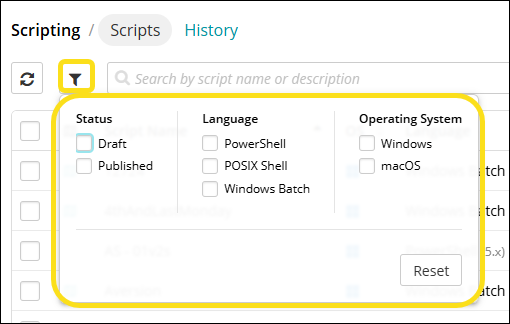
- Click the filter icon

- Select the required filter options from the window, such as:
- Status (Draft, Published)
- Language (PowerShell, POSIX Shell, Windows Batch)
- Operating System (Windows, macOS)
- The scripts gets displayed based on your selected criteria.
- Click Reset to change the filter criteria.
Filtering Jobs
You can filter Jobs on the following pages:
- Libraries > Scripting > Scripting Library page.
- Devices > Device details page > Scripting
To filter Jobs,
- Navigate to Libraries > Scripting to open the Scripting Library page.
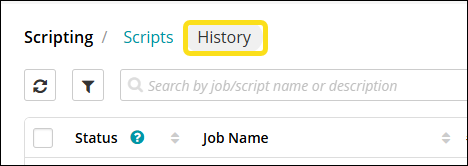
- Click History to open the Jobs Library page
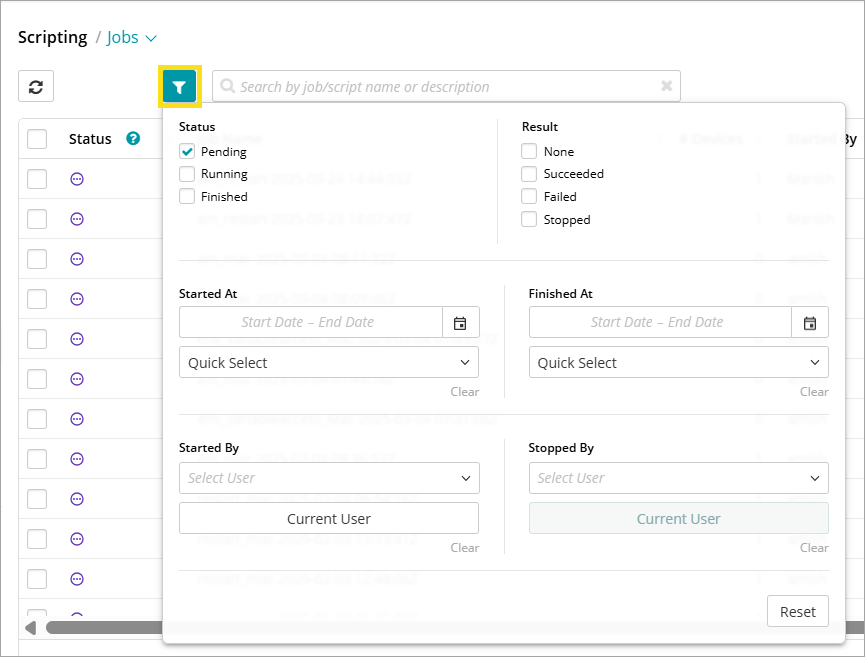
- Click the filter icon
- Choose the required filter options, such as:
- Status (Pending, Running, Finished)
- Result (None, Succeeded, Failed, Stopped)
- Started At - Select the date range using the calendar control.
- Finished At - Select the date range using the calendar control.
- Quick Select - (Optional) Choose a range of days from the drop-down.
- Started By - Select the user who started the job from the drop-down.
- Finished By - Select the user who ended the job from the drop-down.
- Current User - Click this to display the jobs by the current user.
- The system displays the scripts based on your selected criteria.
- Click Reset to change the filter criteria.